Getting started with SeoAiX on a SaaS site (tutorial)
3:14 ·
Chapters: 0:00 Intro · 0:13 Add the site · 0:31 Site profile · 0:52 Connect Google · 1:07 Audit · 1:40 Keywords and topics · 1:58 Where articles live · 2:16 First article · 2:37 Measure
A step-by-step walkthrough: add your site, confirm the site profile, connect Search Console and GA4, read the audit, review keywords and topics, choose where articles live, publish the first article and measure results.
Key points
- Sign up and paste your site address; SeoAiX preselects "SaaS / software".
- Review the drafted site profile, correct anything that is wrong and confirm it; every article is written from the confirmed version.
- Connect Search Console and GA4 so SeoAiX can see your queries and which articles bring signups.
- The audit covers classic SEO and AI search, including llms.txt, AGENTS.md and pricing.md.
- Topics come from real search volumes and live Google results; your brand name is treated as navigational.
- Choose where articles live: your own domain or a path like yoursite.com/guides (we set that up with you), or a free seoaix.com address.
- Each article is illustrated, linked only to pages that exist on your site, and submitted for indexing right away.
- Every week you see which articles brought signups and whether Google's AI Overviews mention you or your competitors.
Transcript
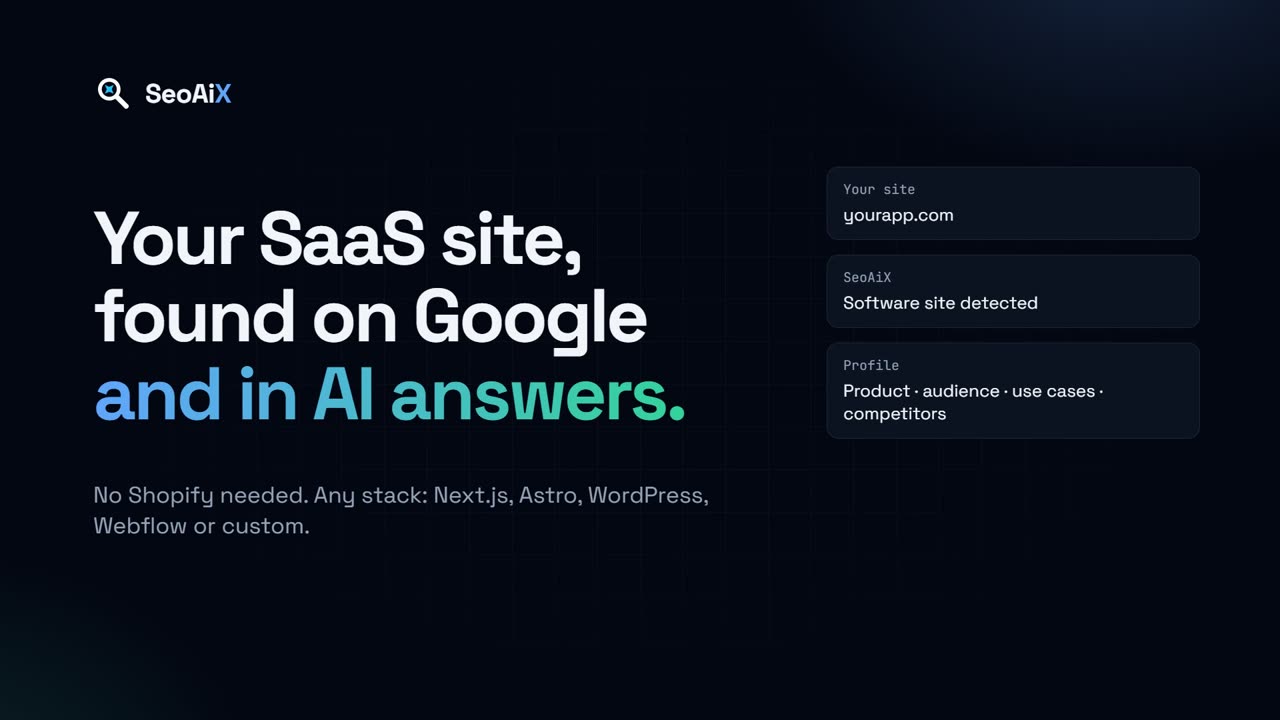
No Shopify needed. In about four minutes you'll add your site, confirm what it is, and see your first article with images go live on your own domain. Here's how SeoAiX works for a software site.
When you sign up, paste your site's address and click Detect. SeoAiX recognizes a software site on its own and preselects SaaS for you. Once it's added, your site lives under Store / Site & GSC in the sidebar. This is seoaix.com, set up as a SaaS site.
Open the site card and click View / Edit. SeoAiX has read your site and drafted a profile: your brand name and tagline, what the product is, who it's for, your use cases, integrations and voice. Correct anything that's wrong, then save and confirm. Every article is written from the confirmed version, so it's worth a minute here.
On the same page, connect Google Search Console, then Google Analytics 4, and pick the right property for each. This is what lets SeoAiX see the searches you already appear for and which articles bring signups.
Next, open Full audit under Diagnostics. You get an overall score and a score for each category: technical SEO, page speed, on-page, structured data, analytics and AEO, which is about AI search. Open a category to see each finding. Here, AEO checks for llms.txt, AGENTS.md and a pricing.md file that AI assistants can read, with the evidence and the fix for each.
Topics come from real search volumes and live Google results. SeoAiX groups searches that mean the same thing into one topic and shows how many searches each one reaches and whether you've covered it yet. Searches for your own brand name are left alone; people already find you.
Under Blog Domain, choose where your articles live: a free seoaix.com subdomain, your own subdomain like blog.yoursite.com, or a path such as yoursite.com/guides. For the path option, we set it up with you.
Your articles appear under Blogs with their status. Here's one that's live on seoaix.com/guides. Each article is researched and written for your site, gets a hero image and in-article images, and links only to pages that really exist on your site. As soon as it's published, it's submitted for indexing.
Then measure. Performance shows traffic, revenue and conversions from Google Analytics and Search Console, and links carry UTM tags so you can see which articles brought signups. Each week SeoAiX also checks whether Google's AI Overviews mention you or your competitors.
Set it up once and SeoAiX keeps going every week. Start free at app.seoaix.com.
Related
Try it on your own site
Start free; customer-facing changes always wait for your approval.
Start free at app.seoaix.com